Pages

Showing posts with label Citrix Licensing. Show all posts

Monday, 18 March 2013

How to delete License's on XenDesktop

Please check out www.kaztechsolutions.co.uk for more of my technical posts, alternately please call us on 01932 268289. 

Every now and then you'll find that you might need to delete a few licenses on your XenDesktop installation generally due to over usage, bit of a pain when a user gets this error as it displays an error about not enough licenses available.

First from where you have installed the license server run the following commands from C:\Program Files (x86)\Citrix\Licensing\LS

udadmin -list

This will display who is currently using a license and when it is due to expire.


siobhan.andrews XDT_ENT_UD 2013.0815
stephen.dunn XDT_ENT_UD 2013.0815
steve.jerome XDT_ENT_UD 2013.0731
suzanne.ballantine XDT_ENT_UD 2013.0815
sylvia.munn XDT_ENT_UD 2013.0815
teena.omara XDT_ENT_UD 2013.0815

Next find the user who you want to delete and then type the following command.

udadmin -f XDT_ENT_UD -user teena.omara -delete

you have now released a license


Examples
udadmin -list
Displays all the users and devices.

udadmin -list -a
Lists all features, versions, counts of licenses, and the users and devices for each feature.

udadmin -f XDT_ENT_UD -user u8.08 -delete
Releases one user from one feature.

udadmin -f XDT_ENT_UD -device dn01.88 -delete
Releases one device from one feature.


Monday, 4 February 2013

KMS with VDI

Please check out www.kaztechsolutions.co.uk for more of my technical posts, alternately please call us on 01932 268289. 

Anyone doing VDI at somepoint will have to deal with MS licensing and the joys of KMS!  Now if you haven't done it before and you start to read about it on the Technet and what not apparently its really easy to setup and all you need is 25 unique connections to the KMS host to start activating Windows 7 and 5 unique connections for office 2010.  RUBBISH - there's loads of little "gotcha's" that both MS and Citrix don't make you aware of.  

Hopefully this will help a few people out with the pain that is KMS...!

Setting up the KMS Host

NOTE: Always run a CMD in elevated mode.

  • Designate a KMS host – has to be 2008 R2 or Windows 7. (You can use 2003... If you have too.)
  • Get KMS host key from your MS volume licensing site. DO NOT USE THE KMS CLIENT KEY!
  • Run a cscript slmgr.vbs /dlv and you'll see that the KMS Host is currently using a KMS Client key.
  • Run cscript slmgr.vbs /ipk XXXXX-KMS-host-key-XXXXX.  This changes the licensing mode to be a KMS Host instead of a KMS Client.
  • cscript slmgr.vbs /ato to activate your KMS Host against your MS volume licensing.
  • After activating the KMS key, restart the Software Protection Service.
  • Re-run a cscript slmgr.vbs /dlv to see the current KMS count is 0 and you'll also notice that the licensing has changes to a KMS Host.
Setting up a KMS Client


  • On the golden image if you have changed the license key to a MAK change back to a KMS client key.  Windows automatically comes using a KMS client Key but if you need to change it back use the key from the KMS Client Key website.  DO NOT ENTER THE KMS HOST KEY IN TO A CLIENT!
  • On the golden image type the following command to verify the DNS SRV Record: nslookup –type= srv_vlmcs._tcp
  • Check that you can ping the KMS host.
  • Attempt Windows 7 KMS Client activation using the following command: slmgr.vbs /ato
  • The activation attempt will fail with an error that the activation count is insufficient, this is fine but check on the KMS Host that it has received the request by running a cscript slmgr.vbs /dlv on the designated KMKS Host and the count should be 1.
  • Since KMS requires 25 unique activation requests to activate the clients spin up 25 desktops.
  • VDI-in-a-Box ensure that the activation timer is enabled within the template and for XenDesktop PVS install ensure that the vDisk is set to KMS.

  • Now a KMS client will automatically try to register against the KMS host using the DNS SRV record but you can speed this process up by using the VAMT 2.0 to force the activation.   Select 25 or more VM’s and choose to active via KMS.


  • Run a cscript slmgr.vbs /dlv to see the current KMS count should be above 25, all other windows 7 VM’s will now rergister.

Setting up Office 2010

  • For office make sure that the KMS host has the Microsoft Office 2010 KMS Host License Pack installed along with the KMS Host Office 2010 key from the your MS volume licensing site.
  • On the golden image make sure that the Office 2010 installation have the KMS client key and like Windows 7 Office 2010 comes with a KMS Client key.
  • From a CMD run a cscript ospp.vbs /dcmid from C:\Program Files (x86)\Microsoft Office\Office14 to see the CMID.
  • Start a new CMD and run the following command to allow access to run the Office rearm correctly - icacls C:\ProgramData\Microsoft\OfficeSoftwareProtectionPlatform /grant "Network Service:(OI)(CI)(R,W,D)" /t.
  • Start a CMD and run a OSPPREARM.EXE from C:\Program Files (x86)\Common Files\microsoft shared\OfficeSoftwareProtectionPlatform and this will clear the CMID.
  • Rerun a cscript ospp.vbs /dcmid and you'll see the CMID is now cleared.
  • Save and/or publish image so that it is now live, if you are using VDI-in-a-Box make sure you tick the "reset activation timer" in the template.
  • Activate Office 2010 on 5 desktops by running a CMD from  %programfiles(x86)%\microsoft office\office14\cscript ospp.vbs /act (note: activation will fail for the first 5 desktops and you can also use VAMT 2.0 to do this.)
  • Veryify that unique CMIDs are created for each desktop by running %programfiles(x86)%\microsoft office\office14\cscript ospp.vbs /dcmid
  • On desktop number 6, KMS activation should work without errors.
I hope this help a few people out and if i get some time I'll put some screenshots of the commands being run just to give a little bit more help.

Troubleshooting Tips
if you have to re-enter a office KMS key as you are currently using a MAK use the following command from %programfiles%\Microsoft Office\Office14.

 cscript ospp.vbs /inpkey:

Thanks

Thursday, 12 April 2012

XenApp 6.5 Step by Step - Step 1 Installation

Please check out www.kaztechsolutions.co.uk for more of my technical posts, alternately please call us on 01932 268289. 

This is a installation of XenApp 6.5 step by step in a test lab setup within VMware Workstation which I've built to help me play\view some of the new features within XenApp 6.5.

Before I begin the install of XenApp 6.5 I've configured the following first
  • A Windows 2008 domain (CTXLAB.COM).
  • 2 Windows 2008 R2 64bit servers configured with my customizations and SP1 installed for the XenApp servers and the web interface.
  • A Windows 2008 R2 server for the license server.
  • A Windows 7 SP1 64bit.
Step 1 - Installing XenApp 6.5 has a few prerequisites but I'm going to let the XenApp Server Role Manager (using the Server Role Installer) to automatically install XenApp prerequisites.  Lets get started but if you are planning a deployment of XenApp 6.5 have a look at my planning guide which give you a list of questions you need to ask before even starting.

1. Insert the XenApp 6.5 media and click on install XenApp Server.

 2. Since we added no prerequisites you will be prompted to install .Net 3.5 SP1, click OK.

3.  Once the install of .Net 3.5 has finished and the Citrix XenApp Server Role Manager starts click on Add Server Roles.

4.  You will be prompted to select your edition of XenApp.

5. Agree to the license and click Next.

6.  As this is a test environment I'm going to install the XenApp and Web Interface role on the same server but if this is a production environment have a look here to see how you can split the roles out. 
 7.  I've added the XML integration as this let the Citrix XML port and IIS share port 80, if you have a requirement to separate these do not select it.

 8.  You will now be prompted about how the installation is going to plan out and what restarts are required.

9.  Review what is going to be installed and click next.

10.  As I never added some of the prerequisites the installation requires a restart.

11.  Once you clicked on finish on the previous screen you will now be prompted to Reboot the XenApp server, click on the Reboot link within role manager.

12.  Make sure you log back in to the server with the user account the you used to install XenApp with and you will be prompted to resume install, click on the resume install link.

13.  You will be presented with now what is going to be installed after the restart, click Install.

14.  Your XenApp 6.5 install is now completed, click finish

 15.  You will now be asked to configure the XenApp licensing and the Web Interface since we select this during the install. 

Now go to Step 2 to see how to configure Licensing. 


XenApp 6.5 Step by Step - Step 2 Licensing

Please check out www.kaztechsolutions.co.uk for more of my technical posts, alternately please call us on 01932 268289. 

Now moving on to Step 2 - Licensing. 

Once your XenApp Server installation is finished it's time to configure Licensing for your environment.  Please keep in mind that this is just a test environment and I will be only configuring the Citrix licensing side of things so if you plan to introduce this in to production consider your MS Remote Desktop Services too.  RDS does come with a 120 grace period so this is prefect for a test environment.

NOTE: If you are adding in Licenses to the server MAKE SURE that your License Server's computer name is ExAcTlY the same as your host name on your MyCitrix license section

1.  Once the XenApp installation has finished you will be prompted to configure the license side of things but first you need to setup a Windows Server with the Citrix License role installed.

2. I have a Windows 2008 R2 server configured to handle the licensing side of things so first thing first insert the XenApp 6.5 media.  Now the option to install the license side of things you have to drill down to find the option so click on >Manually install components>Common Components>Citrix Licensing.

NOTE: Now you need to install the Citrix Licnese server but first back sure you have .NET Framework 3.5.1 features through the add features wizard.


3.  Accept the license agreement and click next.

4.  Choose your installation directory.

5.  Click finish to the License server installation.

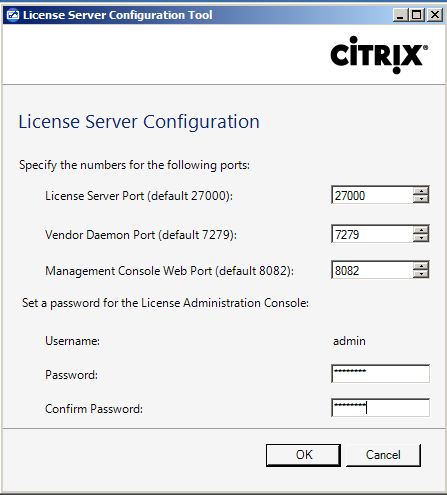
6.  Once the installation is finished you will be prompted with the configuration ports and admin password for the License Server.  


7.  Before logging on to the license console if you require to copy your License file to the MyFiles path to enable Citrix products copy it to C:\Program Files (x86)\Citrix\Licensing\MyFiles.  Now locate the License Administration Console under the all programs in your start menu, once the console starts locate the Administration link in the top right of the page and you will be prompted with log on page.  Add in the credentials that you set in section 6.


8. Once in the Administration section of the console locate the Vendor Deamon Configuration section.

9.  Browse to the directory you copied your license file and select your license, now choose to "overwrite license file on license server" and click on import license.

10.  Your license should now have imported, click on OK to message.

11.  Now restart the Citrix License Server Service and then look back at the dashboard of the License console and you should see all your licenses checked in.

12. Now go back to the XenApp Server you configured in Step 1 and click on Specify Licensing.

13.  Add in the license server name and the port number and click on Test connection.  If all connects fine click next and specify your edition and then click finish.

14.  Now looking back at the XenApp Server you will see that the Licensing is now specified.


Now that the Licensing is configured lets move to Step 3 - Configuring the Web Interface. 

Wednesday, 23 March 2011

Citrix Licensing Error - Event ID 1001,1004,11706

Please check out www.kaztechsolutions.co.uk for more of my technical posts, alternately please call us on 01932 268289. 

Recently I had an issue where our Licensing server was throwing the following warning/errors and it turns out it was an issue with SCOM 2007 R2 agent installed with Citrix MP 5.0 on the licensing server.

The version of licensing server that was running was 11.6 and once we removed the SCOM agent and restarted the the License server all of these error stopped.

Event Type: Warning
Event Source: MsiInstaller
Event Category: None
Event ID: 1001
Detection of product '{EE7A694A-15EE-4551-A267-EBF5904DD49D}', feature 'CitrixLicensingProductFeature' failed during request for component '{D0EBE218-FC25-5A69-A95A-C5C79CC68186}'

For more information, see Help and Support Center at http://go.microsoft.com/fwlink/events.asp.

Event Type: Warning
Event Source: MsiInstaller
Event Category: None
Event ID: 1004
Detection of product '{EE7A694A-15EE-4551-A267-EBF5904DD49D}', feature 'CitrixLicensingProductFeature', component '{213B3304-A395-438C-9510-BC621D799083}' failed. The resource 'HKEY_LOCAL_MACHINE\SOFTWARE\Citrix\LicenseServer\Install\Debug' does not exist.

For more information, see Help and Support Center at http://go.microsoft.com/fwlink/events.asp.

Event Type: Error
Event Source: MsiInstaller
Event Category: None
Event ID: 11706

Product: Citrix Licensing -- Error 1706. An installation package for the product Citrix Licensing cannot be found. Try the installation again using a valid copy of the installation package 'CTX_Licensing.msi'.

For more information, see Help and Support Center at http://go.microsoft.com/fwlink/events.asp.
Data:
0000: 7b 45 45 37 41 36 39 34 {EE7A694
0008: 41 2d 31 35 45 45 2d 34 A-15EE-4
0010: 35 35 31 2d 41 32 36 37 551-A267
0018: 2d 45 42 46 35 39 30 34 -EBF5904
0020: 44 44 34 39 44 7d DD49D}