Pages

Showing posts with label XenApp. Show all posts

Thursday, 21 November 2013

Load Balance A Citrix Web Interface

Please check out www.kaztechsolutions.co.uk for more of my technical posts, alternately please call us on 01932 268289. 

To me if you don't configure all of your Citrix Web Interfaces (WI) to use a network load balance (NLB) setup you are asking for trouble as you have now created a single point of failure within your environment!

NLB is available in Windows Server 2008 standard and enterprise so you should now have no excuses to implement this in to your environment.

First thing First lets configure 2 Windows 2008 R2 server with NLB, in my test environment the two servers are XenApp.ctxlab.com (192.168.219.129) and XenApp2.ctxlab.com (192.168.219.131) and the NLB address will be XANLB.ctxlab.com (192.168.219.135).


1.  Install the Network Load Balancing feature on both servers that will be hosting both the WI.


2.  Once NLB is installed start the NLB manager and right click to create new cluster.

3.  Enter the first member in the NLB cluster and click Connect and the Next

4.  Check that the IP address is correct and put a tick in the retain suspended state (to help avoid a webserver kicking in after rebooting during controlled maintenance) and click next.

5.  Enter the clusters IP address and Subnet Mask and click on OK.

6.  Add in the FQDN of the cluster and change the Cluster mode to Multicast.

7.  Click on edit to the current port.

8.  Change the port range to 80-80 and the protocol to TCP

9.  Once the port is changed click on finish.

10.  You should now see the first member of the cluster added correctly and add the other member of the cluster.  I wont give a description of each point here as this is done in nearly the exact same way as above I'd add the screenshots to help if anyone gets stuck.


11.  Once you have added the second member to the cluster you should now see both members working correctly.


Wednesday, 7 November 2012

Migrating the Datastore from SQL Express to SQL 2005 or SQL 2008

Please check out www.kaztechsolutions.co.uk for more of my technical posts, alternately please call us on 01932 268289. 

I was recently at a client that had a requirement to migrate their Datastore from an old XenApp server to the enterprise class SQL cluster, the only problem was that the Datastore was a SQL Express 2005 database and which was due to go on to a SQL 2008 instance.

Citrix offers  good pointers for migrating from Access to SQL/Oracle, Oracle to SQL, SQL to Oracle and same version SQL to SQL but nothing for SQL Express to SQL.

My saviour came in the form of Carl Webster (the accidental Citrix Admin) www.carlwebster.com.

Migrating from one database version to the other might be necessary to move the data store to a more powerful server. The best method for migrating between versions of the database is to back up and restore the database using the utilities provided by the database software vendor.
To point a Citrix XenApp Server farm to a new database complete the following steps. For the best performance, complete this procedure on the data collectors after all other servers are reconfigured.


Back up the existing farm database.

Create a new blank database on the destination SQL instance

Create a new DSN file that points to the new database:


Click Start -> Administrative Tools -> Data Sources (ODBC).

Note: What is ODBC?  This is taken from http://support.microsoft.com/kb/110093

"Open Database Connectivity (ODBC) is Microsoft's strategic interface for accessing data in a heterogeneous environment of relational and non- relational database management systems. Based on the Call Level Interface specification of the SQL Access Group, ODBC provides an open, vendor- neutral way of accessing data stored in a variety of proprietary personal computer, minicomputer, and mainframe databases.
 
ODBC alleviates the need for independent software vendors and corporate developers to learn multiple application programming interfaces. ODBC now provides a universal data access interface. With ODBC, application developers can allow an application to concurrently access, view, and modify data from multiple, diverse databases."
Click the File DSN Tab.

Note:  What is the difference between "User DSN", "System DSN" and "File DSN"?  This is taken from http://support.microsoft.com/kb/213772.

User DSN: The User DSN is a data source that is user-specific. A User DSN is stored locally but is available only to the user who creates it.

System DSN: Unlike a User DSN, a System DSN is not user-specific. A System DSN is stored locally and is not dedicated to a particular user. Any user who logs on to a computer that has permission to access the data source can use a System DSN. Some programs, such as Microsoft SQL Server or Microsoft Internet Information Server (IIS), require a System DSN. This DSN must be created on the server where the program is located. System DSNs are stored in the Windows registry under the following key: HKEY_LOCAL_MACHINE\Software\Odbc\Odbc.ini\Odbc Data sources

File DSN: The File DSN is created locally and can be shared with other users. The File DSN is file-based, which means that the .dsn file contains all the information required to connect to the data source. Note that you must install the ODBC driver locally to use a File DSN.  File DSNs are not stored in the Windows registry. The .dsn file is a text file that you can view in any text editor, such as Microsoft Notepad.

Change the Look in to C:\Program Files\Citrix\Independent Management Architecture.  The new DSN must be placed in this folder.  The IMASERVICE service is programmed to look in only this folder.

Click the Add button.

 Click on SQL Server and click Next.
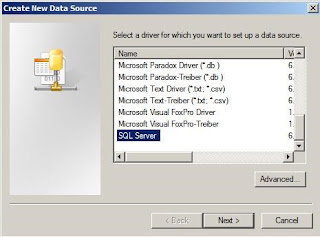
Type in C:\Program Files\Citrix\Independent Management Architecture\WebsterFarmDSMF20.dsn and click Next.

Note: The DSN can be named anything as long as it has a .dsn file extension.  It does not need to contain "MF20" anywhere in the name.

Click Finish.

Enter a Description and type in the name of the SQL Server and click Next.

If a successful connection to the SQL Server is made click Next.  A common problem is the Windows Firewall is not configured to allow SQL traffic (TCP Port 1433).  To configure an instance of SQL Server 2005 to use a static port, follow the steps described in the "How to: Configure a Server to Listen on a Specific TCP Port (SQL Server Configuration Manager)" topic in SQL Server 2005 Books Online.

Note:  If SQL Server is set to use a static port, click Client Configuration, then uncheck Dynamically determine port and enter the value for the static port number.


 If the account listed in the grayed out Login ID authenticates successfully to the SQL Server, Change the default database to the new SQL Server data store and click Next

Note: One problem could be the Login ID account is not setup to access the SQL Server.

Click Finish.

Click Test Data Source.
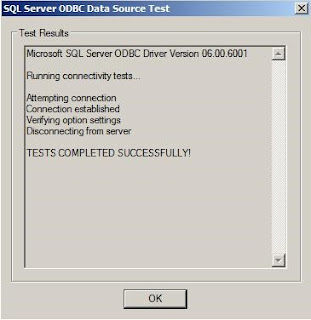
If the message TESTS COMPLETED SUCCESSFULLY is shown, click OK.  Otherwise, you will need to troubleshoot the ODBC connection to the SQL Server.

 Click OK.

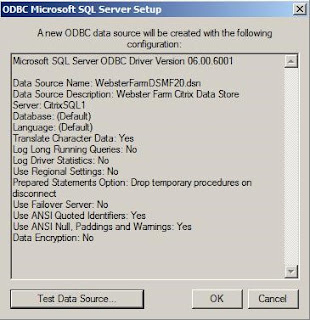
Your new DSN is created.  Click OK.

Run the dsmaint config command on the server with the new DSN file:

dsmaint CONFIG /user:LAB\Administrator /pwd:Password1 /dsn:"C:\Program Files (x86)\Citrix\Independent Management Architecture\XA65LABDS.dsn"

Stop and restart the IMA Service.

Important: Restarting the IMA Service instead of restarting the server might cause the SNMP service to initiate Dr. Watson if SNMP is enabled. This error is benign.
Ensure that the server is pointing to the new data store by checking the following registry setting:
HKEY_LOCAL_MACHINE\SOFTWARE\Citrix\IMA\DataSourceName
If the IMA Service started successfully, copy the new DSN file to all servers in the farm.
Run the dsmaint config command to change the IMA Service configuration on all remaining servers in the farm. 
Stop and restart the IMA Service on all servers in the farm.

Wednesday, 22 August 2012

Citrix XenApp failed to connect to the Data Store

Please check out www.kaztechsolutions.co.uk for more of my technical posts, alternately please call us on 01932 268289. 

Recently ran in to an error where I couldn't connect to any XenApp server using the AppCenter and I was getting the following errors within the system event log.

Event ID 3989
Citrix XenApp failed to connect to the Data Store. ODBC error while connecting to the database: 28000 -> [Microsoft][ODBC SQL Server Driver][SQL Server]Login failed. The login is from an untrusted domain and cannot be used with Windows authentication.

Event ID 3632
The server running Citrix XenApp failed to connect to the data store. Invalid database user name or password. Please make sure they are correct. If not, use DSMAINT CONFIG to change them.  Error: IMA_RESULT_ACCESS_DENIED  Indirect: 0  Server:   DSN file: C:\Program Files (x86)\Citrix\Independent Management Architecture\mf20.dsn

Event ID 3612
The server running Citrix XenApp failed to connect to the Data Store IMA_RESULT_ACCESS_DENIED. Invalid database user name or password. Please make sure they are correct. If not, use DSMAINT CONFIG to change them. 

Now it turns out that the farm was configured to use the administrator account for access to the datastore and when the domain administrator password was changed these errors start to appear.

To get round this issue (Not use the domain admin account!!!) run the following DSMAINT command and set the correct password for the administrator account.

DSMAINT CONFIG /user:domain\administrator /pwd:password

Ideally you should change the account used for this to a different account that is used for XenApp only.

Tuesday, 14 August 2012

Mobile Devices and CAG VPX

Please check out www.kaztechsolutions.co.uk for more of my technical posts, alternately please call us on 01932 268289. 

Ok have you run in to the lovely issue with trying to configure a mobile device such as an iOS device or android to connect to a XenApp service site via a CAG VPX?  We'll after reading all the edocs, multiple forums posts and just at of playing I finally got it working.

You may run in to an error and be presented with the following message
"The address given did not provide a valid App list. Please check the address, gateway settings, and your network connection.”"
I've spent a load of time on this and i could never find any documentation that specified what exactly was needed..... do I need to add config.xml to the basic logon point? Do use FQDN or Netbios....Ahh!

Anyways lets begin

Before you start
  1. A Web Interface of 5.4 but at least 5.x.
  2. Access Gateway 5.02 or above.
  3. FQDN certs and intermediate cert.
Web Interface
  1. Create a service site called /mobile but can be anything you choose.
  2. Name farm and add Servers to the site along with XML port and transport type.
  3. Configure the mobile site with "Gateway Direct" in secure access
  4. Add address of externally FQDN (cagaddress.domain.com)
  5. Set STA as http://XASrv.domain.com:port/scripts/ctxsta.dll
  6. Authentications point at Web Interface
  7. Set Authentication Method to Prompt
Access Gateway
  1. Configure ICA Access Control List - ICA and SR. 
  2. Configure STA - Exact setting you configured for the WI.
  3. Configure authentication profile you require.
  4. add cert and make sure you also add the intermediate cert and then Chain the certs.
  5. Create a Basic Logon Point called Mobile and check Authenticate with Web Interface
  6. Website Configuration:

  • Home Page - http://XASrv/mobile/config.xml
  • Web Address - http://XASrv/mobile/config.xml

Note: for the Web Address also try just "http://XASrv"

Citrix Receiver mobile
  1. The Root CA certificate that created the AG certificate must be present on the mobile device.
  2. iPad - URL https://cagaddress.domain.com/lp/mobile 
  3. iPhone - URL https://cagaddress.domain.com/lp/mobile/http/XASrv/mobile/config.xml


Use the Online URL Generator http://bit.ly/URL_Generator to create simple way of setting up the receiver. 

If you think i've missed something off please dont hesitate to let me know.

Wednesday, 1 August 2012

XenApp 6.5 Policies Best Practices

Please check out www.kaztechsolutions.co.uk for more of my technical posts, alternately please call us on 01932 268289. 

Well not as such but this is what I setup for a baseline for each and every XenApp server I setup.  It gives you a good starting point to work from and from this point you can then go on to create additional policy to suit your needs and then apply the additional policy with the use of filters so that it applies to the correct group.  This is a mixture of policies that are recommended by Citrix and some that i just like to add in, the Citrix policies were taken from CTX134081 but this article also gives you some great pointers on UPM and Windows GPO's.

If you have any other policies that you like to set in your baseline policies and/or WAN/LAN/Tablet please post them.

XenApp Baseline User Policy.

Apply this policy as your baseline to all users connecting to your XenApp farm.

ICA\Adobe Flash Delivery\Flash Redirection 

Flash acceleration - Enabled
Flash default behavior - Enable Flash Redirection
Flash event logging - Enabled
Flash intelligent fallback - Enabled
Flash latency threshold - 30 milliseconds
ICA\Audio 

Audio Plug N Play - Allow
Audio quality - Medium
Client audio redirection -  Allow
Client microphone redirection -  Prohibit
ICA\Desktop UI 

Desktop wallpaper - Allowed
Menu animation - Allowed
View window contents while dragging - prohibited
ICA\File Redirection 

Client floppy drives - Prohibit
Client optical drives - Prohibit
Host to client redirection  Disable
Read-only client drive access - Disable
Use asynchronous writes - Enabled
ICA\Port Redirection 

Auto connect client COM ports - Disable
Auto connect client LPT ports - Disable
Client COM port redirection - Disable
Client LPT port redirection - Disable
ICA\Printing 

Client printer redirection - Allow 
Default printer - Set to client’s main printer
Printer auto creation log preference - Errors
Wait for printers to be created (desktop) - Disabled
ICA\Printing\Client Printers 

Auto-create client printers - Default printer only
Auto-generate generic universal driver - Disabled
Client printer names - Standard names
Direct connections to print servers - enabled
Retained and restored client printers - Allowed
ICA\Printing\Drivers 

Automatic installation of in-bo printer drivers - Disabled
Universal driver usage - Use Universal Printing only if requested driver is unavailable
ICA\Printing\Universal Printing 

Universal printing EMF processing mode - Spool to printer
Universal printing image compression limit - Best Quality
Universal printing optimization defaults - Standard Quality
Caching of embedded images
Caching of embedded fonts
Universal printing preview preference - Use for auto-generated and generic
ICA\Session Limits 

Linger Disconnect Timer Interval - 5 Minutes
Linger Terminate Timer Interval - 10 Minutes
Pre-Launch Disconnect Timer Interval - 15 Minutes
Pre-Launch Terminate Timer Interval - 30 Minutes
ICA\Shadowing 

Log shadow attempts - Allow
Notify user of pending shadow connections - Allow
Users who can shadow other users - Defined by security
ICA\Time Zone Control 

Estimate local time for legacy clients - Enable
Use local time of client -  Use Client time zone
ICA\TWAIN devices 

Client TWAIN device redirection - Enabled
TWAIN compression level - low
ICA\Visual Display\Moving Images 

Moving Image Compression - Enabled
Server Session Settings
Session importance - Normal
Single Sign-on - Disabled

XenApp Baseline Computer Policy Setting.

Apply this policy as your baseline to all Servers in your XenApp farm.

ICA
ICA listener connection timeout - 120000 ms
ICA listener port number - 1494
ICA\Auto Client Reconnect 

Auto client reconnect - Allow 
Auto client reconnect authentication   Not required Require
Auto client reconnect logging   Disabled
ICA\End User Monitoring 

ICA round trip calculation - Enable
ICA round trip calculations for idle connections - Disable
ICA\Graphics 

Display memory limit   32768 KB
Display mode degrade preference - Degrade Color Depth First
Dynamic Windows preview - Enabled
Image caching - Enabled
Maimum allowed color depth   32 bit
Notify user when display mode is degraded - Disabled
Queuing and tossing - Enabled

ICA\Graphics Caching
Persistent Cache Threshold - 3000000 Kbps
ICA\Keep Alive 
ICA keep alive timeout - 60 seconds
ICA keep alives - Enabled
ICA\Multimedia 
Windows Media Redirection - Allowed
ICA\Session Reliability 
Session reliability connections - Prohibited
ICA Shadowing 

Shadowing - Allow
Licensing
License server host name - License Server name
License server port - 27000
Server Settings
DNS address resolution - Enabled
Full icon caching - enabled
Server Settings\Health Monitoring and Recovery 

Health Monitoring - Enabled
Health Monitoring tests - Use Defaults (please configure as you see fit.)
Server Settings\Memory/CPU 

CPU Management server lever - preferential load balancing
Memory optimization - Enabled
Memory optimization interval - enabled
Server Settings\Reboot Behaviour 

Reboot logon disable time - Choose a value to suit your clients
Reboot Schedule frequency - Choose a value to suit your clients
Reboot Schedule start date  - Reboot Schedule Choose first day of the reboot
Reboot Schedule time - Choose time to restart server
Reboot warning interval - Choose interval which the users are notified about pending restart
Reboot warning users - enabled
Scheduled Reboots - enabled
XML Service 

Trust XML requests - enabled
XML server port - 8080

XenApp WAN/External User Policy.

Apply this policy for users working from branch offices or remote locations with low bandwidth and/or high latency connections.

ICA\Adobe Flash Delivery\Flash Redirection 

Flash acceleration - Enabled
ICA\Audio 

Audio quality -  Medium 
ICA\Client Sensors\Location 

Allow applications to use the physical locations of the client device - allowed (Tablet Devices)
ICA\Desktop UI 

Desktop wallpaper - prohibited
Menu animation - prohibited
View window contents while dragging - prohibited
ICA\File Redirection  

Use asynchronous writes - Enabled 
ICA\Mobile Experience 

Automatic Keyboard Display - Enabled (Tablet Devices)
Launch touch-optimized desktop - Enabled (Tablet Devices)
Remote the combo box - Enabled (Tablet Devices)
ICA\Printing  Wait for printers to be created (desktop) - Disabled 
ICA\Printing\Universal Printing  

Universal printing optimization defaults - Standard Quality
Caching of embedded images
Caching of embedded fonts
ICA\TWAIN devices 

Client TWAIN device redirection - Disabled
ICA\Visual Display  

Max Frames per Second - 15 FPS
ICA\Visual Display\Still Images 

Extra Color Compression - Enabled
Extra Color Compression Threshold - 8192 kbps
Lossy compression level - High
Lossy compression level threshold value - Unlimited

Monday, 23 July 2012

How to find your Datastore for XenApp

Please check out www.kaztechsolutions.co.uk for more of my technical posts, alternately please call us on 01932 268289.

Sometimes you inherit a customer/client that you have no details for and therefore cannot find out certain information quick enough!!!

If you need to find out where the Datastore is for a certain installation just check the following regkey. 

HKEY_LOCAL_MACHINE\SOFTWARE\Policies\Citrix\IMA\Database Settings.

Friday, 20 July 2012

Citrix Licensing Service will not start!!!

Please check out www.kaztechsolutions.co.uk for more of my technical posts, alternately please call us on 01932 268289. 

OK I know I've not been working with Citrix as long as some people but this is the first time I've come across this this problem...  For some reason on a customers Citrix environment the Citrix Licensing Service would not start...

you will get an event id something like the following


Faulting application name: lmadmin.exe, version: 11.9.0.0, time stamp: 0x4d6bbff6
Faulting module name: lmadmin.exe, version: 11.9.0.0, time stamp: 0x4d6bbff6
Exception code: 0xc0000005
Fault offset: 0x0005e222
Faulting process id: 0x2a58
Faulting application start time: 0x01cd65da86623391
Faulting application path: C:\Program Files (x86)\Citrix\Licensing\LS\lmadmin.exe
Faulting module path: C:\Program Files (x86)\Citrix\Licensing\LS\lmadmin.exe
Report Id: c469cc23-d1cd-11e1-ab7b-0050568070dc


The client was running License server 11.9.0 Build 11011 and to resolve this issue i had to rename the "C:\Program Files\Citrix\Licensing\LS\conf\concurrent_state.xml" and then start the licensing service again and all works fine.

The issue is resolved in License server 11.10