Pages

Showing posts with label Web Interface. Show all posts

Thursday, 21 November 2013

Load Balance A Citrix Web Interface

Please check out www.kaztechsolutions.co.uk for more of my technical posts, alternately please call us on 01932 268289. 

To me if you don't configure all of your Citrix Web Interfaces (WI) to use a network load balance (NLB) setup you are asking for trouble as you have now created a single point of failure within your environment!

NLB is available in Windows Server 2008 standard and enterprise so you should now have no excuses to implement this in to your environment.

First thing First lets configure 2 Windows 2008 R2 server with NLB, in my test environment the two servers are XenApp.ctxlab.com (192.168.219.129) and XenApp2.ctxlab.com (192.168.219.131) and the NLB address will be XANLB.ctxlab.com (192.168.219.135).


1.  Install the Network Load Balancing feature on both servers that will be hosting both the WI.


2.  Once NLB is installed start the NLB manager and right click to create new cluster.

3.  Enter the first member in the NLB cluster and click Connect and the Next

4.  Check that the IP address is correct and put a tick in the retain suspended state (to help avoid a webserver kicking in after rebooting during controlled maintenance) and click next.

5.  Enter the clusters IP address and Subnet Mask and click on OK.

6.  Add in the FQDN of the cluster and change the Cluster mode to Multicast.

7.  Click on edit to the current port.

8.  Change the port range to 80-80 and the protocol to TCP

9.  Once the port is changed click on finish.

10.  You should now see the first member of the cluster added correctly and add the other member of the cluster.  I wont give a description of each point here as this is done in nearly the exact same way as above I'd add the screenshots to help if anyone gets stuck.


11.  Once you have added the second member to the cluster you should now see both members working correctly.


Tuesday, 19 March 2013

An error occurred while making the requested connection

Please check out www.kaztechsolutions.co.uk for more of my technical posts, alternately please call us on 01932 268289. 

Recently I had an issue where I was getting the following error when trying to launch a Virtual Desktop via a CAG.


Upon looking closer at the issue I noticed that the Web Interface config had not been setup right and the URL for the STA was actually missing the correct path (http://IPAddressOfDDC/scripts/ctxsta.dll) to the STA and once it was changes to the correct format the Virtual Desktops could launch successfully.


If you have the same issue check the event logs of the Web Interface and see if event ID's 30016 and 30205 are being logged.

Hope this helps someone out.

Thursday, 12 April 2012

XenApp 6.5 Step by Step - Step 3 Web Interface

Please check out www.kaztechsolutions.co.uk for more of my technical posts, alternately please call us on 01932 268289. 

Now moving on to Step 3 - Web Interface. 

Now I'm going to keep this really basic Web Interface (WI) installation as this is only a test lab but i may expand on it at a later date.

1.  On the XenApp Server that you installed the WI click on configure.

2.  You will be presented with a blank WI console, click on Create site in the top right corner.

3.  Now I've selected XenApp Services site as i plan to mainly use this WI with a plug in.

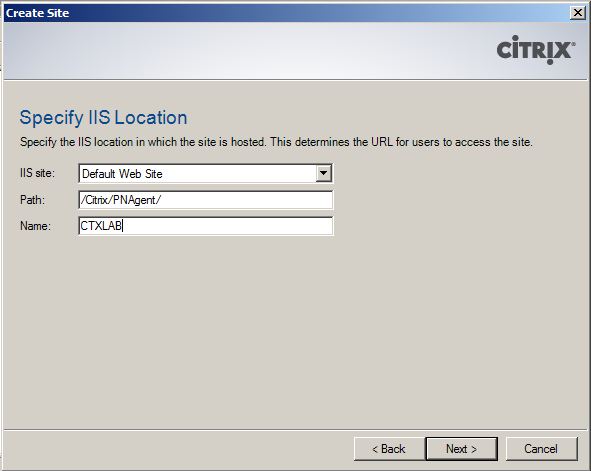
4.  Check you are happy with the location of the WI and the name of WI.

5.  Review your settings and click Next.

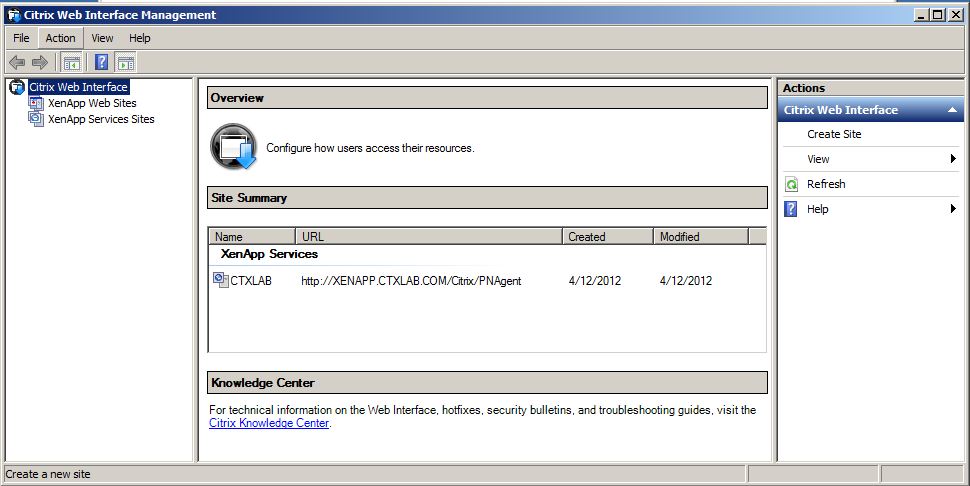
6.  Your site should have now been created, click Next to configure your site.

7.  Give you Farm a name (Good idea to give this the same name that you plan to give your XenApp farm) and add in the XenApp server's.  Now I only have one XenApp server at the moment in this environment but you can add to this at a later date, check the XML and transport type and click Next.

8.  Select here you plan to present applications through this WI, now I'm going to be playing with streamed and published applications through this WI so I will select dual.

9.  Click finish.

10.  You can now see that a basic WI is now configured and I'll be coming back at a later date to back some amendments. 

Moving on to Step 4 - Configuring the Farm.