Pages

Showing posts with label XenServer. Show all posts

Thursday, 14 February 2013

This operation cannot be performed because the specified virtual disk could not be found.

Please check out www.kaztechsolutions.co.uk for more of my technical posts, alternately please call us on 01932 268289. 

Just had a customer who got the following error when booting a VM

"This operation cannot be performed because the specified virtual disk could not be found."


Turns out that sometimes if you have an ISO mounted in the DVD drive this can sometimes cause the above error.

Hope this helps someone out.

Friday, 8 February 2013

Poor performance with AMD

Please check out www.kaztechsolutions.co.uk for more of my technical posts, alternately please call us on 01932 268289. 

Had some fun recently with some Dell server’s and getting any type of respectable performance from the VM’s on each Xenserver host.

Turns out that if you have a AMD Opteron 62** it is only support on 6.0.2 XenServer (this is all it should require) and even after running the upgrade to 6.0.2 it also then required HOTFIX XS602E016 and to also change the power settings in the BIOS to max power and then upgrade the XenTools of each VM.

Just thought that this might help someone if they are experiencing this type of issue.

Sluggish Windows 7/2008 - XenServer 6.1

Please check out www.kaztechsolutions.co.uk for more of my technical posts, alternately please call us on 01932 268289. 

If you get any issues with sluggish Windows 7 VM’s on XenServer 6.1 ensure you have the following hotfixes applied to the XenHost and then upgrade the XenTools on all VM’s after the Hotfixes have been applied.

XS61E003
XS61E004
XS61E006
XS61E008
XS61E009
XS61E010

Also other possible MS issue could be related to the following - http://support.microsoft.com/kb/2617858


Tuesday, 18 September 2012

Windows 7 Optimization and GPO's Settings

Please check out www.kaztechsolutions.co.uk for more of my technical posts, alternately please call us on 01932 268289. 

Hi Guys,

I’d get my ideas down and put them up for discussion but no doubt over time I'll expand on this but this gives you a good base to work from.

Some are from Citrix best practices but the rest are what I think should be changed.

Disable following services
This can be done on the VM itself or via GPO added the settings to the below section.
Background Intelligent Transfer Service
Desktop Windows Manager Session Manager
Function Discovery Resource Publication
HomeGroup listener
HomeGroup provider
Offline Files
Security Center
SuperFetch
System Restore
Windows Defender
Windows Media Player Sharing Service

Group Policies applied to Windows 7 VM - Computer
Error Reporting: Administrative Templates – Windows Components – Windows Error Reporting Disable Windows Error Reporting: Enabled
Windows Update: Administrative Templates – Windows Components – Windows Updates Configure Automatic Updates: Disabled
System Restore: Administrative templates – System – System Restore Turn off System Restore: Enabled

Group Policies applied to Windows 7 VM - Users
Screensaver :Administrative Templates – Control Panel – Personalization
Enable screen saver: Enabled
Prevent changing screen saver: Enabled
Password protect screen saver: Enabled
Screen saver timeout: Enabled – 600 seconds
Force specific screen saver: Enabled – scrnsave.scr
Force folder redirection: Enabled (Include AppData, Desktop, Documents, Downloads, Favourites and Pictures and Music depending on how strict we want to be.)
Ensure each folder redirection is setup like so.

Add following via registry preferences through a GPO
Force Offscreen Composition for Internet Explorer: [HKEY_CURRENT_USER\Software\Microsoft\Internet Explorer\Main] "Force Offscreen Composition"=dword:00000001
Reduce Menu Show Delay: [HKEY_CURRENT_USER\Control Panel\Desktop] "MenuShowDelay"="150"
Disable all Visual Effects:
[HKEY_CURRENT_USER\Software\Microsoft\Windows\CurrentVersion\Explorer\VisualEffects] "VisualFXSetting"=dword:00000003
[HKEY_CURRENT_USER\Control Panel\Desktop\WindowMetrics] "MinAnimate"="0"
[HKEY_CURRENT_USER\Software\Microsoft\Windows\CurrentVersion\Explorer\Advanced] "ListviewAlphaSelect"=dword:00000000 "TaskbarAnimations"=dword:00000000 "ListviewWatermark"=dword:00000000
"ListviewShadow"=dword:00000000
[HKEY_CURRENT_USER\Control Panel\Desktop] "DragFullWindows"="0" "FontSmoothing"="0" "UserPreferencesMask"=binary:90,12,01,80 ,10,00,00,00


Citrix Profile Manager GPO – Version 4 and above
IMPORTANT: make sure the version of the ADM added to the GPO is exactly the same as the version of the installation that is in the image.
Profile Management – Enable Profile Management - Enabled
Profile Management – Processed groups: Enabled (add AD groups containing required users)
Profile Management – Process logons of local Administrators: Disabled
Profile Management – Path to Store: Enabled (specify path to store)
Profile Management – Active write back: Enabled
Profile Management – Profile Handling – Template profile: Enable (if we want to standardise user profiles)
Profile Management – Advanced settings – Process Internet cookies files on logoff: Enabled
Profile Management – Log Settings – Enable logging: Enabled
Profile Management – File System – Exclusion list – Directories

$Recycle.Bin
AppData\LocalLow
AppData\Local\Microsoft\Windows\Temporary Internet Files
AppData\Local\Microsoft\Windows\Burn
AppData\Local\Microsoft\Windows Live
AppData\Local\Microsoft\Windows Live Contacts
AppData\Local\Microsoft\Terminal Server Client
AppData\Local\Microsoft\Messenger
AppData\Local\Microsoft\OneNote
AppData\Local\Microsoft\Outlook
AppData\Local\Windows Live
AppData\Local\Temp
AppData\Local\Sun
AppData\Local\Google\Chrome\User Data\Default\Cache
AppData\Local\Google\Chrome\User Data\Default\Cached Theme Images
AppData\Roaming\Microsoft\Windows\Start Menu
AppData\Roaming\Sun\Java\Deployment\cache
AppData\Roaming\Sun\Java\Deployment\log
AppData\Roaming\Sun\Java\Deployment\tmp

Profile Management – File System – Synchronization – folders to mirror: Enabled (AppData\Roaming\Microsoft\Windows\Cookies)
Profile Management – Streamed user profile – Profile Streaming: Enabled

Changes applied directly to VM
Disable Large Send Offload :[HKEY_LOCAL_MACHINE\SYSTEM\CurrentControlSet\Services\BNNS\Parameters] "EnableOffload"=dword:00000000
Disable TCP/IP Offload :[HKEY_LOCAL_MACHINE\SYSTEM\CurrentControlSet\Services\Tcpip\Parameters]  "DisableTaskOffload"=dword:00000001
Increase Service Startup Timeout [HKEY_LOCAL_MACHINE\SYSTEM\CurrentControlSet\Control] "ServicesPipeTimeout"=dword:0002bf20
Hide Hard Error Messages [HKEY_LOCAL_MACHINE\SYSTEM\CurrentControlSet\Control\Windows] "ErrorMode"=dword:00000002
Disable CIFS Change Notifications :[HKEY_LOCAL_MACHINE\SOFTWARE\Microsoft\Windows\CurrentVersion\Policies\Explorer] "NoRemoteRecursiveEvents"=dword:00000001
Disable Logon Screensaver :[HKEY_USERS\.DEFAULT\Control Panel\Desktop] "ScreenSaveActive"="0"
Modify C:\ProgramData\Microsoft\Windows\Start Menu to reflect a “tidy” start menu

Optimizer
If we are using a PVS in an environment ensure that the PVS optimizer is run at least once on image or at the end of each image update process just to be on the safe side.

One time changes
Disable Boot Animation: bcdedit /set bootux disabled
Remove unused Windows components : Windows Media Center, DVD Maker, Tablet Components
Page file : Minimum and maximum the same

Final actions to be performed at each image update process.
Disk Cleanup
Run defragmentation
Optimize Antivirus
Clear event logs
Run a windows updates (potential)
Rerun PVS optimizer if client is using a PVS

Friday, 18 November 2011

XenServer - Lost interfaces

Please check out www.kaztechsolutions.co.uk for more of my technical posts, alternately please call us on 01932 268289. 

I recently ran in to an issue where in my XenServer test environment i seemed to lose all 4 of the NICs that was in my XenServer and the XenServer host could not be seen in XenCenter.

Looking at it closer when in XSCONSOLE and you looked at the management interface section you would get a message back saying "no interfaces present" and in the CLI if you were to run a xe pif-list you would get a message back saying "Host is still booting".

If you were to also run a ifconfig on the XenServer host would would even get back a list of all eth's, bond, xapi and xebr's.

I found out that running the xe pool-emergency-transition-to-master would resolve this issue. Once you have run this command wait around 30 seconds and then restart the host and it was now able to be seen within XenCenter.

Monday, 22 August 2011

XenServer 5.6 SP2 Install

Boot the computer from the installation CD and follow the initial boot messages and the Welcome to XenServer screen, select your keyboard layout for the installation.

Tip: Throughout the installation, quickly advance to the next screen by pressing F12. Use Tab to move between elements, and Space or Enter to select. For general help, press F1.


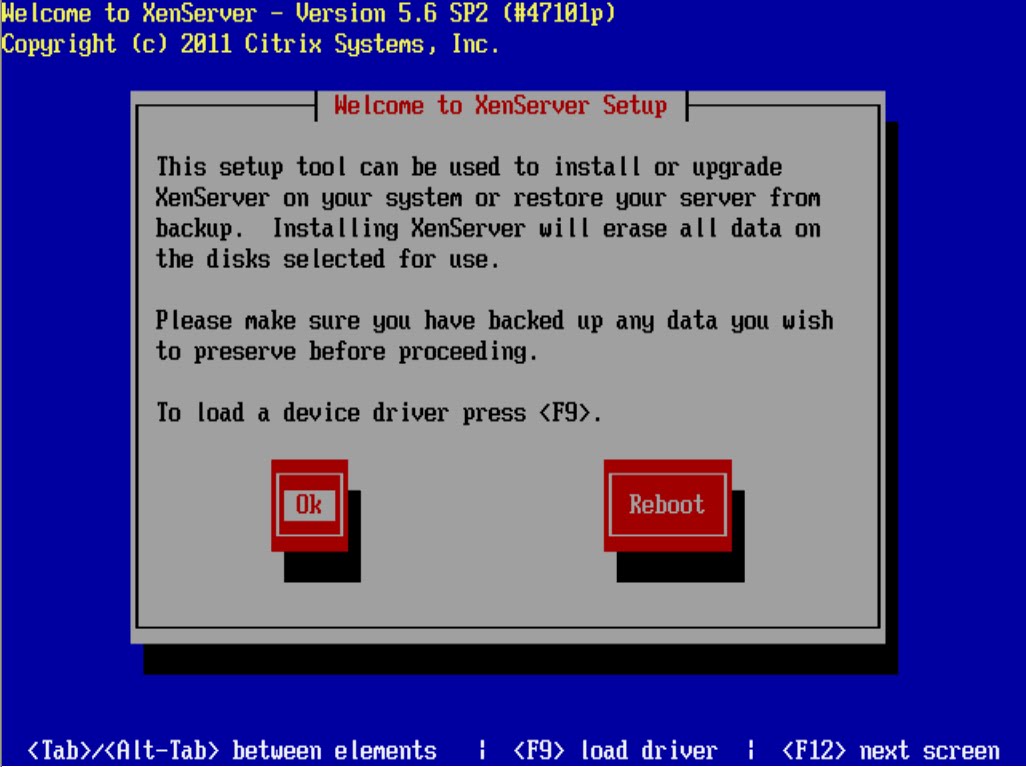
The Welcome to XenServer Setup screen is displayed.

XenServer ships with a broad driver set that supports most modern server hardware configurations.
However, if you have been provided with any supplemental packs containing additional essential drivers, press F9. The installer will then step you through installing the necessary drivers.
Once you have installed all of the required drivers, select Ok to proceed.


The XenServer End User License Agreement (EULA) is displayed. Use the Page Up and Page Down keys to scroll through and read the agreement. Choose Accept EUlA to proceed.


Select an installation action, as appropriate. You may see any of the following options:

• Perform clean installation
• Upgrade: if the installer detects a previously-installed version of XenServer, it offers the option to upgrade. For details on upgrading your XenServer host, see Upgrading XenServer.
• Restore: if the installer detects a previously-created backup installation, it offers the option to restore XenServer from the backup. For details, see the XenServer Administrator's Guide.

Make your selection, and choose Ok to proceed.

If you have multiple local hard disks, choose a Primary Disk for the installation. Select Ok.
Choose which disk(s) you would like to use for virtual machine storage. Information about a specific disk can be viewed by pressing F5.

If you want to use Thin Provisioning to optimize the utilization of available storage, select Enable thin provisioning. XenDesktop users are strongly recommended to select this option in order for local caching to work properly. For details, see XenServer and IntelliCache.
Choose Ok.


Select your installation media source


Indicate if you want to verify the integrity of the installation media. If you select Verify installation source, the MD5 checksum of the packages is calculated and checked against the known value. Verification may take some time. Make your selection and choose Ok to proceed.


Skip verification


Set and confirm a root password, which XenCenter will use to connect to the XenServer host. You will also use this password (with username "root") to log into xsconsole, the system configuration console.


Set up the primary management interface that will be used to connect to XenCenter.


Set up the primary management interface that will be used to connect to XenCenter.


Configure the Management NIC IP address by choosing Automatic configuration (DHCP) to configure the NIC using DHCP, or Static configuration to manually configure the NIC.


Select your time zone — the geographical area and then city. You can type the first letter of the desired locale to jump to the first entry that begins with this letter. Choose Ok to proceed.


If using NTP, either select NTP is configured by my DHCP server to have DHCP set the time server or enter at least one NTP server name or IP address in the fields below. Choose Ok.
Note: XenServer assumes that the time setting in the BIOS of the server is the current time in UTC.


Select Install XenServer.


From the Installation Complete screen, eject the installation CD (if installing from CD) and select Ok to reboot the server.

Wednesday, 22 June 2011

Deleting Multiple VM's from XenCenter

First use excel (or your choice of word editor) and create a list of all your VM's you would like to delete plus the added XE command options

xe vm-uninstall vm=VM1 force=true
xe vm-uninstall vm=VM2 force=true
xe vm-uninstall vm=VM3 force=true
xe vm-uninstall vm=VM4 force=true
xe vm-uninstall vm=VM5 force=true
xe vm-uninstall vm=VM6 force=true
xe vm-uninstall vm=VM7 force=true
xe vm-uninstall vm=VM8 force=true
xe vm-uninstall vm=VM9 force=true


Next open up a putty session to a Xen Host and copy all of the above next directly in to the putty session.

NOTE: Please be aware that the VM names are CaSe Sensitive.

As the text is processed you'll see each VM being delete and you can also view the VM's being deleted in XenCenter as each line of command runs in the putty session.

[root@XENHOST ~]# xe vm-uninstall vm=VM1 force=true
The following items are about to be destroyed
VM : e995f197-5730-9cfc-3491-c2768e02236f (VM1)
All objects destroyed
[root@XENHOST ~]# xe vm-uninstall vm=VM2 force=true
The following items are about to be destroyed
VM : ec6d123d-a3d5-aa11-9439-f4c44927a0fa (VM2)
All objects destroyed


Obviously be double sure that you have the correct list of VM's before you run this command.

Thursday, 10 March 2011

Helpful LINUX Commands

This is just some LINUX commands that i have been using on both ESX and XenServer

Control + R - Use this command if you cannot remember commands you have previously run on a host.

history | tail -n40 - Display the last 40 commands you have typed.

ls -lrt | grep "Mar 8" - List all file modified a certain date.

pwd - Shows current working directory.


df -h - displays size usage

Wednesday, 26 January 2011

Changing pool master

Go to the slave server that you want to use as pool master.

First disable HA on your XenServer Pool.

#xe pool-ha-disable

Now list UUID for all the hosts

#xe host-list

To designate a slave XenServer as the new pool master

# xe pool-designate-new-master host-uuid=("enter UUID number - without quotes"

If your pool master is down or unavailable, log in to a slave XenServer and enter the command below.

#xe pool-emergency-transition-to-master

Nopw you need to re-establish all connections to the slaves from the new pool master.

# xe pool-recover-slaves

Friday, 15 October 2010

VM won't start and now is in a Stuck State

From time to time Vm's can get stuck in a state where you cannot start, shutdown, reboot or even force a reboot or shutdown. When this happens from the console type: xe-toolstack-restart (note that your XenCenter will loose connection when you do this. Nothing will however happen to your running VMs)

Reconnect with XenCenter (or let it reconnect by itself) and you should see your VM no longer in a stuck state

Tuesday, 28 September 2010

XenServer Storage Test VM

Please check out www.kaztechsolutions.co.uk for more of my technical posts, alternately please call us on 01932 268289. 

PerformanceVM is a XenServer virtual machine that helps troubleshoot performance related issues such as poor performance casued by storage I/O and network I/O. The VM built on Debian Linux equips with following test utilities and is accessible via a web based user interface:

Disk I/O performance utility
It can be used to conduct the following disk I/Os to measure: sequential read/writes and random read/writes with various specified block sizes.

Network I/O performance utility
It is essentially a modified version of netperf. Additional information about netperf can be found at http://www.netperf.org. Netperf runs on the backend and provides end-to-end request/response round trip latency and TCP/UPD throughout tests.

download the VM from the following locations http://xenbits.xensource.com/export/1/perfmon/PerfVM1_0.zip and Import the VM in to XenCenter.


Running PerformanceVM

Access the console
1. SSH into the PerformanceVM’s IP address.
2. Enter the 'root' user name and password. The root user log on credentials are:
User name: root
Password: xensupport

Start the web server
1. Start the web service using the script and the IP address of the virtual machine:
/start.sh [XenPOOLMASTERAddress]
2. When prompted for a password, enter:
The password for [XenPOOLMASTERAddress]
3. A prompt to inflate thin provisioned VDIs will be presented. Answer yes or no.

Note: If the Disk I/O test returns values that are off of the graph, then the above steps
probably need to be run in order to accurately reflect the performance.


4. In a web browser, enter http://[PerfVMAddress ]:8888/ to start testing.

Note: If XenServer hasn’t reported the VM’s IP address yet to XenCenter, the scripts will fail to run.

Network I/O Performance Utility
Running the Network utility requires that Netserver be installed on a remote system. This can be downloaded from the Network I/O utility page. Netserver can be installed on a Linux VM or dom0 at a remote site, where the destination testing will occur. Start Netserver before running any network performance tests.

Disk I/O performance utility
Running the Disk Utility will show real time performance of the specified disk. Access to Dom0 is required to access the performance data, but Dom0 is not modified. It can be run on master or slave machines.

Additional results are provided and will show up to the last 10 minutes of a test period. This will include various other counters along with the Disk results. Final results are graphed on a separate results page.

Friday, 24 September 2010

How to increase XenServer HA TimeOut

Use the following two commands from CLI to increase the HA timeout on your XenServer, first you have to disbale HA then re-enable HA via the CLI with the timeout switch. I've found that 120 seconds works best but it all depends on your environment and what suits your needs best.

xe pool-ha-enable heartbeat-sr-uuids=ad1983ed-66cb-8fd7-1ef5-66a41c9d4345 ha-config:timeout=XX

Obviously change the SR UUID to the UUID of your own SR and where =XX change this to the number of seconds to wait until HA kicks in by default, it is 30 seconds.

NOTE: to get your list of SR UUID's type xe sr-list in the console

Thursday, 16 September 2010

Change Pool Master via CLI

First disable high availability:
xe pool-ha-disable


Now list your XenServer hosts:
xe host-list


Using the list above, designate a new pool master by supplying the uuid associated with the desired host:
xe pool-designate-new-master host-uuid=


You’ll probably lose connection to the pool at this point, but that’s normal behavior. Once XenCenter reconnects (this should happen automatically), it’s safe to re-enable high availability:
xe pool-ha-enable

Wednesday, 15 September 2010

XenServer CLI - Commands

Please check out www.kaztechsolutions.co.uk for more of my technical posts, alternately please call us on 01932 268289. 

Since there is so many command within XenServer sometimes its hard to remember which command you require. This is just a list of regular commands that I use but please feel free to point out your favourite commands.

To find anything with the word "Server1" in messages logs. Obviously change the word to what you require but if you'r having a problem with a server named Server1 of instances you can enter the command below to filter out any information with Server1 in the logs.

grep Server1 /var/log/messages

To list your interfaces so you can identify the right UUID for your network device.

xe pif-list

To list full device details for the network device. TIP: once you have the UUID's of all of your interfaces simply enter the first couple of characters of the UUID interface and then press tab to fully populate the UUID.

xe pif-param-list uuid=(UUID of pif)

In XenServer 5 FP 1 you have the option to use vSwiches instead of the traditional bridging technology, the default install of XenServer does not have this enabled so you will have to run the following command to enable it. NOTE: you have to restart your XenServer after you have entered this command.

xe-switch-network-backend openvswitch


With XenServer it recommended that turn off auto-negotiation, set duplex to Full, and speed to 1000 using the Command Line Interface (CLI). To do this first find the UUID of the storage interface using the following command.

xe pif-list

Next set the parameters of the physical interface (PIF) using the following commands.

xe pif-param-set uuid= other-config:ethtool-autoneg=”off”
xe pif-param-set uuid= other-config:ethtool-speed=1000
xe pif-param-set uuid= other-config:ethtool-duplex=”full”


Restart the XAPI service because it controls networking on the XenServer, an alternative option is to reboot the XenServer. If you are in a pool, the above changes must be done on each storage PIF of the XenServers.

With XenServer its sometimes necessary to restart the iSCSI service on a XenServer, to do so run the following command from the CLI

service open-iscsi restart

Some times in XenCenter you'll get a VM that's in a "halted" state and you cannot even perform a force shutdown/reboot and even a xe-toolstack-restart will not shutdown the VM. To run a force restart from a CLI command run the following commands.

xe vm-shutdown -u root vm-name=vm_name
xe vm-shutdown -u root vm-id=vm_UUID


NOTE: you can change the shutdown option to either boot or retart to change the function you want.

xe help –all|more Show a list of XenServer CLI commands
• xsconsole Runs up the XenServer text based console
• xe-toolstack-restart Restarts the XenServer management tools
• ls –l List files in a Directory
• less /var/log/dmesg Display Boot Messages from Linux
• xe host-dmesg Xen Hypervisor Boot messages
• tail –f /var/log/xensource.log Look at xapi messages as they happen
• tail –f /var/log/xensource.log | grep xxx Look at xapi messages only for vm uuid xxx
• tail –f [log name] > [target filename] Send output to a file for analysis later
• cat /etc/xensource-inventory Display XenSource Inventory info
• xen-bugtool –yes Build a status report when xapi is down
• xe-backup-metadata -d –u [uuid of SR] Back up Pool metadata for all VMs
• tcpdump –i [inf] –vvv –w [filename] Get a Packet trace from [inf]. E.g. Inf=eth0, xenbr0, vif2.0 etc.
• top List the top processes running in Dom0
• xentop List top Xen processes
• mpstat 5 Processor stats in Dom0
• vmstat 2 Virtual memory in Dom0
• netstat –s Networking statistics
• iostat -d 2 6 Storage traffic stats
• list_domains Lists VMs that are running
• fdisk –l List the disk partitions
• hdparm –t /dev/sda3 Device read times for sda3 (normally local SR)
• pvs Show local and remote LVHD SRs
• ll /dev/disks/by-id Look at disk partitions
• lvs List logical volumes (virtual disks)
• vgs List LVM volume groups
• cd /var/run/sr-mount Look at NFS SRs
• df -h Shows how much disk space you have left
• dd if=/dev/sdb of=/dev/null iflag=direct bs=1M count=512 Read data performance from sdb.
• dd if=/dev/zero of=/dev/sdb oflag=direct bs=1M count=4096 Write performance on sdb. * Don’t use on disks with VMs on them!
• ifconfig Show info on NICs, virtual switches and vNICs
• brctl show Show info on virtual switches
• ethtool eth0 Info for NIC eth0
• mii-tool Info on NIC bonding
• iscsiadm -m discovery –type sendtargets –port 192.168.250.14 Discover iSCSI targets available to this server
• iscsiadm –m session Open iscsi sessions
• history Lists the history of commands you’ve used
• !136 Executes command #136 in the history
• history -w history-list.txt Writes the history info to a text file